

 Architecture
 Bathroom
 Childroom
 Decoration
 Furniture
 Kitchen
 Lighting
 Plants
 Technology
 Materials
 More
More
Oct
In this article, we will teach you how to import 3D models and objects from the BIMBY3D website into your lumion library.

- Why Lumion is a Favorite Among Architects
- Lumion Library Has Its Limits
- How to Add Bimby3D Models to Lumion Object library
- Download Test File
- Organize Your Library for Faster Workflow
- Top Benefits of Importing 3D Models into Lumion
- video tutorial
- Final Words
Why Lumion is a Favorite Among Architects
Lumion is one of the most powerful and widely used rendering tools in the architectural visualization world. Known for its real-time rendering capabilities and ease of use, it helps architects transform 3D models into lifelike images and animations in just minutes.Moreover, Lumion library includes higher-quality objects compared to many other rendering tools, offering designers access to realistic furniture, materials, vegetation, and scene elements that enhance the final visual output — however, it still may not be sufficient for professionals who require more specialized or detailed assets.
In addition to its speed and performance, Lumion is also exceptionally user-friendly, making it accessible even for beginners in architectural visualization.
What makes Lumion even more valuable is how seamlessly it integrates with Revit. Through the LiveSync plugin, any changes made in Revit are instantly reflected in Lumion, allowing for a dynamic and fluid workflow. This combination provides professionals with both precision (via Revit) and stunning visuals (via Lumion) — a perfect duo for fast, high-quality architectural presentations.
But Lumion Library Has Its Limits
Lumion library includes a wide range of materials, furniture, vegetation, people, weather effects, and lighting presets. However, when it comes to high-end design or brand-specific visualizations, its assets can sometimes fall short.
Many designers and studios want more control over the look and detail of their scenes. That’s where importing external 3D models becomes a game-changer.
How to Add Bimby3D Models to Lumion Object library
If you’ve downloaded 3D objects from BIMBY3D or any other custom source you should have this formats to adding them to Lumion library is easy:
objectname.lib
objectname.lib.inn
objectname.lib.mtt
objectname.lib.txx
Follow these simple steps to import model:
✅ Step-by-step Instructions:
- Unzip the downloaded file from BIMBY3D.
- Copy the extracted folder/files into the following path:
makefileCopyEditC:\Users\YourUsername\Documents\Lumion 12.0\Library
🔍 Note: The path may vary depending on your Lumion version and installation path.
- Close Lumion if it’s open, then restart it.
- Inside Lumion, go to Import Model, and you will now see your new objects available for use.
Are you looking to Import 3d Models into Enscape
Organize Your Library for Faster Workflow
To keep your assets tidy and accessible, it’s highly recommended to create subfolders within Lumion’s library. For example, if you’re importing a collection of furniture models, you can organize them like this:
makefileCopyEditC:\Users\YourUsername\Documents\Lumion 12.0\Library\Furniture
This not only makes it easier to locate specific models but also helps improve your overall productivity in future projects.
Top Benefits of Importing Custom 3D Models into Lumion
By enhancing your Lumion library with high-quality custom assets, you unlock a whole new level of design flexibility. Here are just a few benefits:
- 🛠️ Wide variety of detailed 3D models beyond the built-in library
- 🎯 High-quality modeling and textures from professional sources
- 🎨 Customizable materials directly inside Lumion
- 🧱 Highly detailed geometry for realistic close-up renders
- 🚀 Faster workflow by reusing imported models across multiple projects
All of this contributes to elevated design quality, better client presentations, and more impressive visual results.
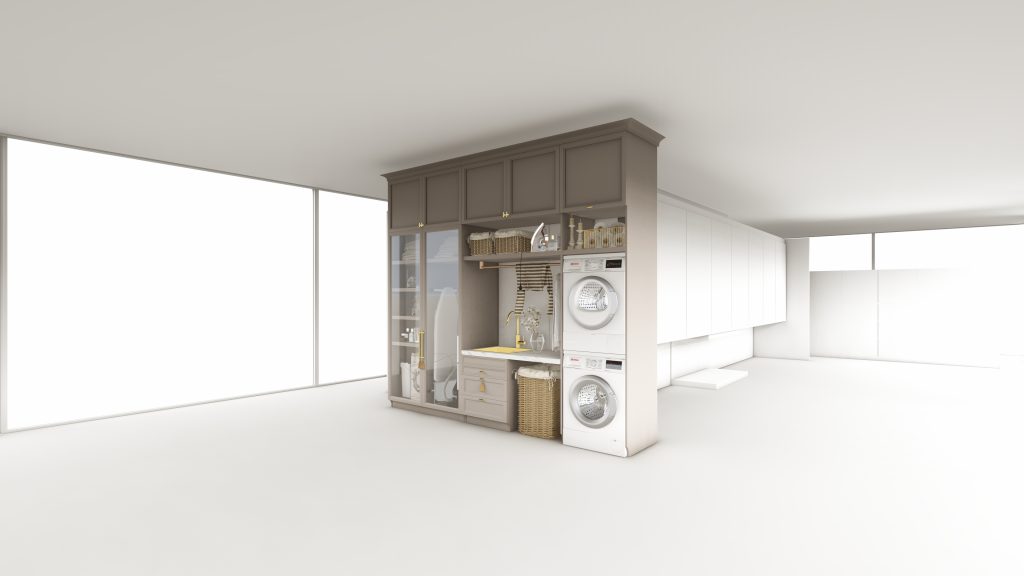
Bonus Tip: Watch the Tutorial
If you run into any issues or want to see the process in action, we recommend watching the video tutorial below. It will guide you step-by-step through importing models and organizing them inside your Lumion library.
https://youtu.be/YfBrV-VLu2g?si=E3Cz0MOYjK3Vnq9P
Final Words
Custom content is key to standing out in today’s fast-paced architectural world. By learning how to import and manage external 3D assets, you give yourself a creative edge — and Lumion becomes not just a renderer, but a true extension of your design vision.
Start importing today and build a library that reflects your unique style, one object at a time.