Author Archives: bimby3d

Top Rendering Engines for Revit: Complete Guide for Architects & Designers

Article Summary

In this comprehensive and master article, we will examine the three top rendering engines for Autodesk Revit: Enscape, Lumion, and V-Ray. Our goal is to provide a complete and comparative analysis that helps architects, designers, and students understand the features, capabilities, strengths, and weaknesses of each rendering engine, enabling them to make the best choice based on their project needs, budget, and skill level. This article details each software and concludes with a systematic comparison.

Table of Contents

  1. Introduction to Rendering in Revit
  2. Enscape: Real-Time Interactive Rendering
  3. Lumion: Powerful for Landscape Visualization & Animation
  4. V-Ray: The Industry Standard for Photorealistic Rendering
  5. Comprehensive Comparison of Revit Rendering Engines
  6. Conclusion and Choosing the Best Option


Introduction to Rendering in Revit

Autodesk Revit is one of the leading Building Information Modeling (BIM) tools, offering extensive design capabilities. However, its built-in rendering features are often insufficient for producing professional-quality outputs. This is where dedicated rendering engines come into play. These engines use advanced computational algorithms to transform the 3D model into photorealistic or artistic images. Choosing the right rendering engine can make a dramatic difference in the quality of the final presentation, workflow speed, and even success in winning client approval.


Enscape: Real-Time Interactive Rendering

Enscape is a real-time visualization tool that offers a seamless integration into design workflows, providing users with an immersive experience for exploring their projects. It serves as a virtual reality plugin for popular design software like Revit and ArchiCAD.

With Enscape, designers can effortlessly transform their 3D models into interactive experiences, allowing clients to virtually walk through spaces before they are built. This powerful tool not only enhances the design process but also facilitates communication and decision-making in architecture and construction projects. Enscape’s compatibility with industry-standard software ensures a smooth transition from design to visualization, making it a valuable asset for professionals seeking to create compelling presentations and renderings.
Enscape has revolutionized the design process as a plugin fully integrated with Revit. This rendering engine is based on Real-Time Rendering technology.

Key Features

  • Real-Time Rendering: See changes instantly and simultaneously while designing in Revit.
  • Full Integration: Installs as a plugin and requires no complex setup.
  • Diverse Outputs: Still images, 360° panoramas, virtual tours, and walkthroughs.
  • Built-in Content Library: Includes pre-made furniture, materials, and vegetation.
  • Virtual Reality (VR) Support: Direct support for VR headsets.

Advantages

  • Easy to Learn: Very gentle learning curve, suitable for beginners.
  • High Speed: Ideal for quick client presentations during design meetings.
  • Smooth Workflow: No need to export the model to another program.

Limitations

  • Limited Render Control: Fewer advanced settings compared to competitors.
  • Limited and low quality objects:Ensacape asset library has little variety.
  • Final Quality: Very good, but not at the professional photorealism level of V-Ray.
  • Hardware Dependent: Requires a powerful graphics card for smooth performance.


Lumion: Powerful for Landscape Visualization & Animation

Lumion

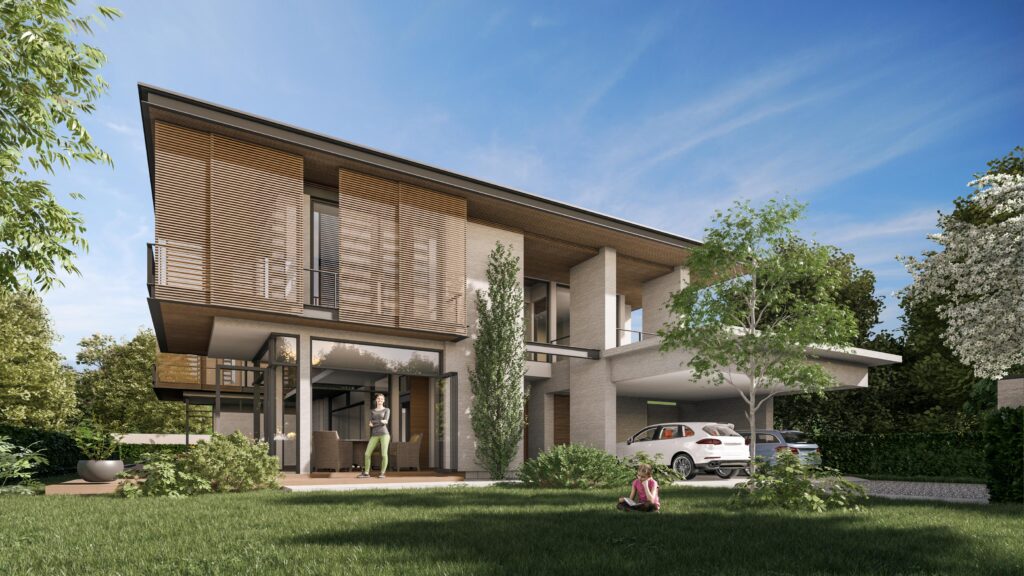
Lumion is a standalone software with a very fluid connection to Revit, focusing on producing high-quality animations and exterior environment renders.

Key Features

  • Vast Content Library: Thousands of ready-made models of people, cars, plants, and furniture.
  • Advanced Animation Tools: Create professional films with moving cameras.
  • Atmospheric & Weather Effects: Full control over lighting, clouds, rain, and snow.
  • Support for Sketch & Hand-Drawn Styles: Artistic and non-photorealistic rendering styles.
  • Fast, High-Quality Rendering: Uses a proprietary rendering engine for speed.

Advantages

  • Visually Stunning Outputs: Ideal for presentations to non-technical clients.
  • Efficiency in Large-Scale Projects: Site plans and urban projects.
  • Easy Animation: Create professional films without specialized animation knowledge.

Limitations

  • Standalone Software: Requires exporting the model from Revit and importing into Lumion.
  • High Cost: Especially for the Pro versions.
  • Limited Control Over Lighting Details: Compared to V-Ray.


V-Ray: The Industry Standard for Photorealistic Rendering

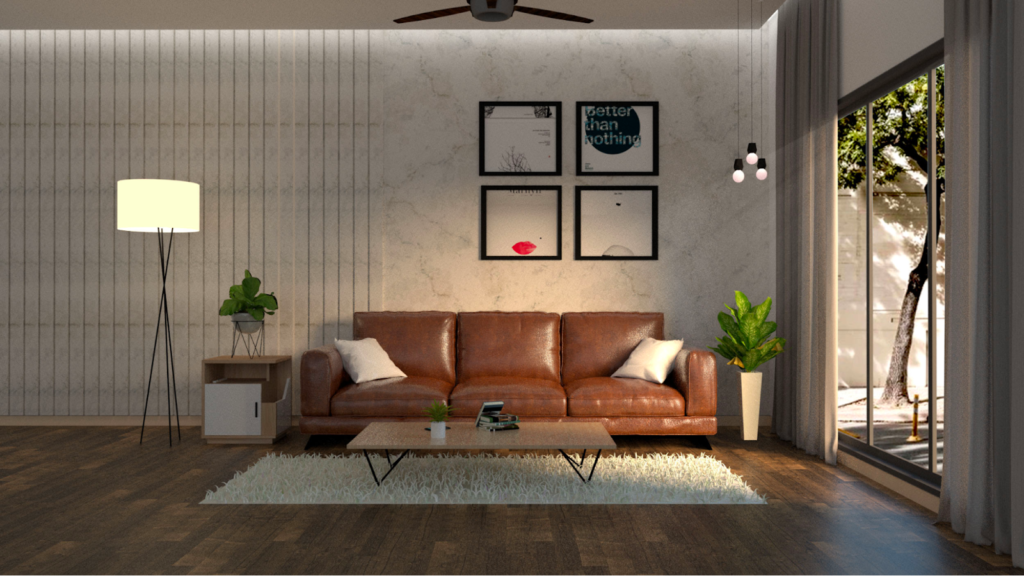
Developed by Chaos Group, V-Ray is known as the gold standard for photorealistic rendering in the architecture industry.
VRay is a powerful and versatile rendering software widely used in the world of architectural visualization and design industries. It provides high-quality, photorealistic renders that bring projects to life with stunning realism and detail.

One of the standout features of VRay is its ability to seamlessly connect with popular design software such as Autodesk Revit, SketchUp, and 3ds Max, making it a go-to choice for professionals in the field. This compatibility allows designers to work efficiently across platforms without compromising on the quality of their renders.

The advanced lighting and shading capabilities of VRay enable users to create visually striking images that accurately simulate real-world lighting conditions. This attention to detail sets VRay apart from other rendering software, making it a preferred tool for architects, interior designers, and CG artists worldwide.

Key Features

  • Powerful Rendering Engine: With advanced lighting and material capabilities.
  • Physical Lighting System: Accurately simulates real-world light behavior.
  • V-Ray Cosmos Material & Light Library: Hundreds of high-quality ready-made materials and lights.
  • Distributed Rendering Capability: Uses multiple computers to reduce render times.
  • Infinite Adjustability: Complete control over all rendering parameters.

Advantages

  • Unparalleled Quality: Ability to produce photorealistic renders with stunning detail.
  • High Flexibility: Access to advanced settings for professional users.
  • HDRI Lighting Support: Creates realistic environmental lighting.
  • Strong Documentation & User Community: Extensive learning resources.

Limitations

  • Steep Learning Curve: Requires time to master all features.
  • Long Render Times: Especially for very high-quality renders.
  • Dependence on Powerful Hardware: Requires both a strong CPU and GPU.


Comprehensive Comparison of Revit Rendering Engines

In this section, we compare the three rendering engines based on various criteria.

1. Ease of Use & Learning Curve

  • Enscape: Easiest to start with, simple interface.
  • Lumion: Moderate, with a focus on visual tools.
  • V-Ray: Complex, requires specialized rendering knowledge.

2. Final Render Quality

  • V-Ray: Best photorealistic quality.
  • Lumion: Excellent quality, especially for exterior environments.
  • Enscape: Good quality, but more suitable for quick presentations.

3. Rendering Speed

  • Enscape: Fastest (real-time rendering).
  • Lumion: Fast for good-quality outputs.
  • V-Ray: Slowest, especially at high-quality settings.

4. Integration with Revit

  • Enscape: Most complete integration (internal plugin).
  • V-Ray: Good integration (internal plugin).
  • Lumion: Least integration (standalone software).

5. Animation Capabilities

  • Lumion: Best in this field with simple yet powerful tools.
  • Enscape: Basic capabilities for walkthroughs.
  • V-Ray: Powerful but complex for professional animations.

6. Cost & Economic Efficiency

  • Enscape: Subscription model with moderate cost.
  • V-Ray: Most expensive, both perpetual and subscription licenses.
  • Lumion: High cost, especially for the Pro version.

7. Virtual Reality (VR) Support

  • Enscape: Best support with full integration.
  • Lumion: Suitable support.
  • V-Ray: Requires additional setup.


Conclusion and Choosing the Best Option

Choosing the right rendering engine for Revit depends on various factors:

Choose Enscape if:

  • You need real-time, instant rendering for design meetings.
  • You are a beginner and want to start quickly.
  • VR capability is important to you.
  • You are looking for the simplest possible workflow.

Choose Lumion if:

  • Your main focus is on visualizing exterior environments and site plans.
  • You need to create attractive, professional animations.
  • You want to quickly produce high-quality renders for clients.
  • A large library of ready-made content is important to you.

Choose V-Ray if:

  • Photorealistic quality at the highest level is your priority.
  • You work on luxury and professional projects.
  • You have sufficient time to learn the software and render.
  • Complete control over all rendering details is important to you.

Hybrid Solution

Many leading architecture firms use a combination of these software:

  • Use Enscape for design review and quick presentations.
  • Use Lumion for animations and exterior renders.
  • Use V-Ray for final photorealistic renders and portfolio work.

The Future of Rendering in Revit

Paying attention to future trends is also important. The shift towards cloud rendering, increased use of AI in improving renders, and further development of Virtual and Augmented Reality are factors that can influence software selection.

Ultimately, the best rendering engine is the one that best aligns with your workflow, project needs, team skill level, and budget. It is recommended to test the trial versions of all three software and make your final decision based on practical experience.

VRAY FOR REVIT RENDERING: HOW TO IMPORT HIGH QUALITY MODELS?

Import vray formats to revit

In this article, you’ll learn how to import 3D models into the VRay for revit rendering.But your renders are only as good as your assets. That’s why the process of importing well-optimized 3D models is a key part of achieving high-end results. Stay tuned for our step-by-step guide to importing objects into VRay for Revit.

VRAY


Vray for Revit Rendering

In architectural visualization, the fusion of precise BIM modeling and realistic rendering engines has become essential. Autodesk Revit, a cornerstone in Building Information Modeling (BIM), excels in technical accuracy and documentation. However, when it comes to client presentations, design approvals, and marketing visuals, a powerful rendering solution like V-Ray for Revit makes all the difference.

V-Ray for Revit, developed by Chaos, offers a high-performance rendering engine that integrates seamlessly with Revit’s BIM environment. Unlike built-in renderers or real-time engines like Enscape or Lumion—which prioritize speed and simplicity—V-Ray focuses on photorealism and fine control over lighting, materials, and camera settings.

vray for revit


Limitations and Challenges

While V-Ray is extremely powerful, it comes with a learning curve. Compared to real-time renderers like Lumion or Enscape, V-Ray offers more manual control—meaning you need a good understanding of lighting, material tweaking, and render settings to get the most out of it.

One notable challenge is the quality of Revit families and 3D objects. Most default Revit content is low-poly and lacks detailed materials, making it unsuitable for high-end visualization. That’s why many users import external 3D objects—originally modeled in 3ds Max, SketchUp, or other sources—to use them in their V-Ray renders.

Are you looking to Import 3d Models into Enscape


Which Formats Can be Imported?

To import 3D models into the V-Ray rendering engine, you should keep the following points in mind:

All of 3d models should be optimized in two formats: .VRMESH and .VRSCENE, both of which are available in models for download on the site.

DOWNLOAD TEST FILE:


How to Import 3D Objects into VRay for Revit

To import these objects, follow the steps below

1.VRscene format

1.1.Notice that the textures are loaded from the resources folder, so before doing this steps, make sure the destination won’t change in the future.
1.2.import revit family(rfa) to your project
1.3.turn on vray
1.4.Open the asset editor and enter the vrscene format in the proxy scene section.
1.5.To make it easier to find, be sure to rename it to match the object’s name.
1.6.open the appearance manager and go to families section.
1.7.find the imported rfa object and link it to proxy scene (object name).
1.8.render and enjoy.

2.VRmesh format

2.1..import revit family(rfa) to your project
2.2.turn on vray
2.3.Open the asset editor and enter the vrmesh format in the proxy mesh section.
2.4.To make it easier to find, be sure to rename it to match the object’s name.
2.5.you can change all materails in proxy mesh setting.
2.6.open the appearance manager and go to families section.
2.7.find the imported rfa object and link it to proxy mesh (object name).
2.8.render and enjoy

NOTICE 1:

In the VRscene format, materials and textures are present on the object and cannot be edit.
In the VRscene format scale is correct.

there is no material and texture in VRmesh format.
all materials in VRmesh format are editable and the file is raw.
in VRmesh format the object’s scale may require adjustment.

NOTICE 2:

In some cases, the .VRMESH format may not be available for certain models.


tutorial video

You can watch the video below to see a step-by-step visual guide on how to import the models into V-Ray.

https://youtu.be/RAUUR2MJ-Yc?si=k8VWIXGeTS_lIf5c

Click here to create a user account.

Quickly Add Object in Lumion Library

IMPORT MODELS TO LUMION LIBRARY

In this article, we will teach you how to import 3D models and objects from the BIMBY3D website into your lumion library.

LUMION


Why Lumion is a Favorite Among Architects

Lumion is one of the most powerful and widely used rendering tools in the architectural visualization world. Known for its real-time rendering capabilities and ease of use, it helps architects transform 3D models into lifelike images and animations in just minutes.Moreover, Lumion library includes higher-quality objects compared to many other rendering tools, offering designers access to realistic furniture, materials, vegetation, and scene elements that enhance the final visual output — however, it still may not be sufficient for professionals who require more specialized or detailed assets.

In addition to its speed and performance, Lumion is also exceptionally user-friendly, making it accessible even for beginners in architectural visualization.

What makes Lumion even more valuable is how seamlessly it integrates with Revit. Through the LiveSync plugin, any changes made in Revit are instantly reflected in Lumion, allowing for a dynamic and fluid workflow. This combination provides professionals with both precision (via Revit) and stunning visuals (via Lumion) — a perfect duo for fast, high-quality architectural presentations.


But Lumion Library Has Its Limits

Lumion library includes a wide range of materials, furniture, vegetation, people, weather effects, and lighting presets. However, when it comes to high-end design or brand-specific visualizations, its assets can sometimes fall short.

Many designers and studios want more control over the look and detail of their scenes. That’s where importing external 3D models becomes a game-changer.


How to Add Bimby3D Models to Lumion Object library

If you’ve downloaded 3D objects from BIMBY3D or any other custom source you should have this formats to adding them to Lumion library is easy:

objectname.lib
objectname.lib.inn
objectname.lib.mtt
objectname.lib.txx

Follow these simple steps to import model:

✅ Step-by-step Instructions:

  1. Unzip the downloaded file from BIMBY3D.
  2. Copy the extracted folder/files into the following path:

makefileCopyEditC:\Users\YourUsername\Documents\Lumion 12.0\Library

🔍 Note: The path may vary depending on your Lumion version and installation path.

  1. Close Lumion if it’s open, then restart it.
  2. Inside Lumion, go to Import Model, and you will now see your new objects available for use.

Are you looking to Import 3d Models into Enscape


Organize Your Library for Faster Workflow

To keep your assets tidy and accessible, it’s highly recommended to create subfolders within Lumion’s library. For example, if you’re importing a collection of furniture models, you can organize them like this:

makefileCopyEditC:\Users\YourUsername\Documents\Lumion 12.0\Library\Furniture

This not only makes it easier to locate specific models but also helps improve your overall productivity in future projects.


Top Benefits of Importing Custom 3D Models into Lumion

By enhancing your Lumion library with high-quality custom assets, you unlock a whole new level of design flexibility. Here are just a few benefits:

  • 🛠️ Wide variety of detailed 3D models beyond the built-in library
  • 🎯 High-quality modeling and textures from professional sources
  • 🎨 Customizable materials directly inside Lumion
  • 🧱 Highly detailed geometry for realistic close-up renders
  • 🚀 Faster workflow by reusing imported models across multiple projects

All of this contributes to elevated design quality, better client presentations, and more impressive visual results.

lumion library
lumion object library


Bonus Tip: Watch the Tutorial

If you run into any issues or want to see the process in action, we recommend watching the video tutorial below. It will guide you step-by-step through importing models and organizing them inside your Lumion library.

https://youtu.be/YfBrV-VLu2g?si=E3Cz0MOYjK3Vnq9P


Final Words

Custom content is key to standing out in today’s fast-paced architectural world. By learning how to import and manage external 3D assets, you give yourself a creative edge — and Lumion becomes not just a renderer, but a true extension of your design vision.

Start importing today and build a library that reflects your unique style, one object at a time.

Click here to create a user account.

How to Easily Import 3D Models to Enscape Asset Library?

import assetpkg file to enscape asset library

“In this article, we provide a step-by-step guide on how to import object (assetpkg format) to enscape asset library , enabling you to render your architectural projects with higher quality and realism.”

enscape


Introduction

If you’re an architect or interior designer using Revit, you may find it necessary to incorporate more diverse and high-quality 3D objects into your projects.Native Revit models often lack the level of detail needed for high-end renderings and are not visually compelling in presentations. Additionally, the limited variety and relatively low quality of assets in Enscape’s default library lead many users to import external 3D objects to enhance the visual richness and realism of their scenes.

We have prepared thousands of 3D objects for you. After reading this article, you’ll gain access to a world of high-quality and diverse 3D assets, all carefully crafted with exceptional detail to enhance your design projects.

Before starting, it is important to know that we use the .assetpkg format to import objects. This format contains a complete set of the object’s geometry, along with all the textures and materials applied to it. This feature allows you to edit any part of the object, modify its materials, or create similar variations to add to your personal library.Also you can use enscape to import object geometry in your revit project.

These powerful tools allow you to import anything you want, including furniture, beds, consoles, tables, and etc, that present your projects with high-quality, photorealistic visuals.

enscape object sample


🛠Steps to Import 3d Objects

  1. Open the Asset Library
    Go to the Enscape tab in Revit and click on the Asset Library.
  2. Select Custom Asset
    From the top tabs of the Asset Library window, click on Custom Asset.
  3. Set Storage Path
    If this is your first time using it, Enscape will ask you to set a file path for storing custom assets.Define a directory where your custom asset library will be stored.
  4. Open the Custom Asset Editor
    At the bottom of the window, click Open the Custom Asset Editor.
  5. Import Your Project
    From the top menu, select Import Project, then choose the .assetpkg file format.
  6. Save Your Asset
    After importing, click Save to add the asset to your custom library

Now your custom asset is ready to use. Simply go to the Custom Asset tab whenever you need to use it again.

Note: This setup only needs to be done once. After configuring it, you can reuse your custom assets without repeating the entire process.

Download the sample asset file for test :


🧱 Adjust Asset Properties (Scale, Category, Tags)

Now that your model is loaded, configure it:

Category: Choose an appropriate category (e.g., Furniture, Vegetation).

Name: Give your object a clear, recognizable name.

Scale: Set the correct scale — Enscape uses meters by default.

Bounding Box: Adjust the bounding box if necessary.

💡 Tip: Want to link a Revit object to an Enscape asset? Click [here].


Why Import 3D Model to Enscape?

Importing your 3d models offers several key advantages:

  • Realistic Renderings:Enscape provide highly realistic visuals that are difficult to achieve within Revit or enscape alone.
  • Object Variety:
    This method gives you access to a wider range of 3D models than what is currently available.
  • High Quality:
    All models and objects are optimized with high quality for Enscape to provide you with a better working experience.
  • Excellent Details:
    The models available to you are crafted with very high detail to make your renders more realistic.
  • Fast Rendering Performance: These platforms are optimized for rapid rendering, allowing you to present your designs to clients much faster.
  • Detailed Visual Output: When objects are transferred correctly, the models retain their details and produce high-quality, professional renderings.


If you need a visual tutorial, please watch the video below.


https://www.youtube.com/watch?v=B05YpqZ0_Sk

Now your custom asset is ready to use. Simply go to the Custom Asset tab whenever you need to use it again.

Click here to create a user account.